
How to Find and Create Great Images on Lummi.ai
TL;DR
- Explore 100,000+ curated AI images across photos, illustrations, and 3D
- Find what you need faster with filters for lighting, number of people, color and more
- Create custom visuals using prompts or reference images to match your vision, and fine-tune with settings like style, aspect ratio, and camera angle
- Use other AI features to restyle your images with effects like pixel art or resize them to fit your layout.
Why Visuals Matter
Strong visuals can elevate a course from good to great, but finding or creating the right images can be time-consuming or overwhelming. That’s where Lummi.ai comes in. Whether you’re searching for the perfect visual or creating an entirely new image from scratch, Lummi is designed to help you bring your content to life with ease.
Use visuals to:
- Design course thumbnails that stand out
- Explain or support key points
- Break up dense content
- Create emotional resonance with learners
- Keep your lectures visually consistent
- Promote your course with clean, eye-catching graphics
- Show diverse people, places, and stories
Search Smarter with Lummi
Lummi’s search engine is built to understand natural language, meaning you can describe what you need in plain English and get back highly relevant, high-quality visuals.
Tips for Effective Search
To make the most of Lummi’s image library, combine descriptive search terms with the built-in filters to dial in exactly what you need.
- Start with a clear subject and activity combo
Examples: “student taking an online course,” “teacher leading a group discussion” - Add emotion or tone keywords
Try words like “joyful,” “curious,” “focused,” or “stressed” to align with your course content - Use the filters to fine-tune your results:
- Color: Match your course branding or desired mood
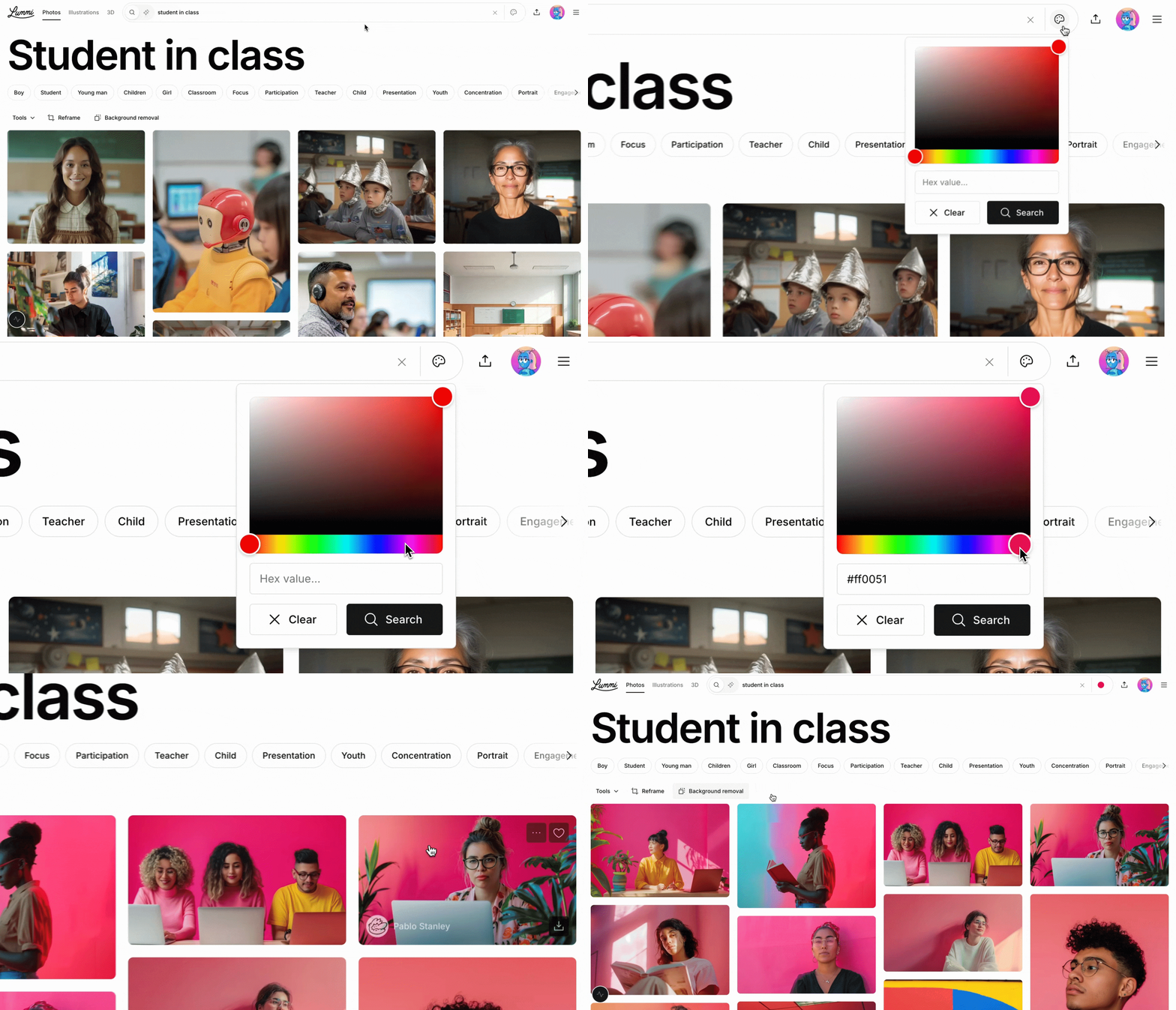
- Number of People: Filter by solo images, pairs, small groups, or crowds
- Lighting: Choose from bright, neutral, or dark tones
- Color: Match your course branding or desired mood
Create Custom Visuals with Lummi
Need something specific that doesn’t already exist in the image library? Lummi’s Create feature gives you full control to generate your own visuals, perfectly tailored to your course.
You can start from a text prompt or remix an existing image using Lummi’s AI image generator.
How to Create with Lummi
- Activate Create Mode
Click the sparkle icon in the search bar to switch into generation mode
- Build a great prompt by including key elements:
- Subject: Who or what is in the image?
- Action: What are they doing?
- Place: Where is it happening?
- Style: Do you want a photo, flat illustration, or something stylized?
Example prompts:
-
- “Young woman studying at a desk in a sunlit room, flat vector style”
- “Instructor pointing at chalkboard in a cozy classroom, warm lighting, watercolor”
- “Online learner on laptop with joyful expression, wide shot, modern interior, photorealistic”
- Use shortcut filters to guide your look:
- Aspect Ratio: Tall, square, or wide (based on your course layout)
- Image Type: Photo, illustration, or 3D
- Type of Shot: Close-up, medium shot, wide, aerial, high or low angle
- Trends: Choose from popular aesthetics to define the vibe
- Generate from an existing image
Upload a reference or select one from the library to create subtle variations by changing things like pose, expression, or mood. In this case, keep your prompt short and focused. Even one keyword can be enough. This is especially useful when you want to keep a consistent style across multiple images, perfect for building around a brand photo, character, or setting.
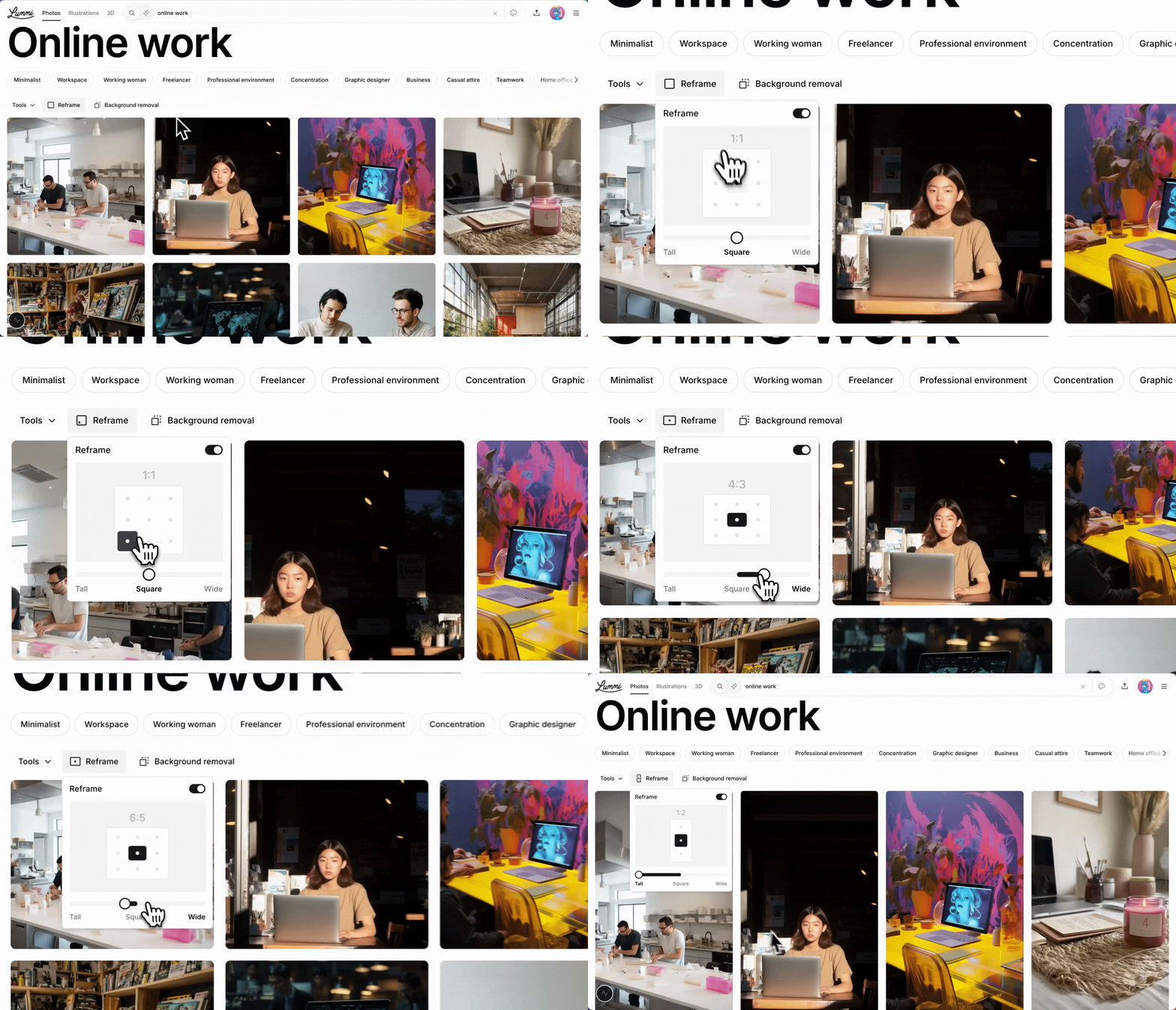
- Use retouch tools
Adjust composition and polish your image after creation using Lummi’s built-in tools
Tips for Prompting Like a Pro
- Be specific, but not wordy. Skip vague or abstract language. Clear, concise prompts work best.
- Get inspired by others. Check out creators like Clemara Studio, who use effective, reusable prompts. On Lummi, you can click the dropdown on any image and choose “Use prompt” to borrow it, remix it, and generate something new quickly.
Wrapping Up
Whether you’re looking for polished imagery or crafting a completely custom visual, Lummi.ai has the tools to support your creative vision. Start by searching smart, or dive into creation mode when you need something tailor-made.
Want your visuals to actually match your content? Head to Lummi.ai and try a search or create your own today.
Ready to create your course? Let's go!
Create a CourseHave questions?

Help and support
Find answers to frequently asked questions and review troubleshooting and how-to articles.

Instructor community
Get support and inspiration from new and experienced instructors.

Trust and safety
Learn about course requirements and policies for instructors and learners.